If Ace Combat 8 is crashing on PC, begin with the three checks acknowledged by the developer: use the recommended graphics driver shown when launching the game, keep at least 16 GB of free space on the SSD where it is installed, and make sure Windows virtual memory is enabled. Then verify the Steam installation and test the low-risk workarounds below one at a time.
There is no confirmed universal fix for every crash. Players have reported Error 01 at startup, crashes during cinematics, failures during mission transitions, endless loading, and complete display-driver or system freezes. Those symptoms may have different causes, so changing several settings at once makes it harder to identify what actually helped.
For frame-rate drops without a crash, use PC performance checks. For an Online disconnect showing ST-3100001, follow the specific error-code checks.
Version scope — October 7, 2026: This page was edited from supplied research. No numbered game build or independent playtest is recorded for this guide. Check the current in-game descriptions and your platform before applying build-sensitive conditions.
Identify the crash pattern before changing settings
Record exactly where the failure occurs. “The game crashes” is less useful than “Error 01 appears five seconds after the game enters fullscreen” or “the display freezes when the post-mission cinematic begins.” The stage of the crash determines which checks should come first.
| Crash pattern | First checks to prioritize |
|---|---|
| Error 01 before the title screen | Recommended graphics driver, Steam file verification, fresh graphics configuration |
| Easy Anti-Cheat opens and the game immediately closes | Steam file verification, restart Steam and Windows, Easy Anti-Cheat repair |
| Crash during a cinematic or mission transition | Graphics driver, fresh configuration, shader cache, fullscreen and frame-rate test |
| Endless loading before the campaign | File verification, free SSD space, virtual memory, fresh configuration |
| Display goes black or the whole PC freezes | Windows Event Viewer, graphics driver stability, stock GPU and memory settings |
| Crash only in one menu or after loading a saved aircraft set | Treat it as a repeatable game-state problem and report the exact menu and preceding action |
Error 01 has appeared under several different conditions in the player reports. Do not assume it proves a damaged GPU, insufficient RAM, or one specific driver fault.
Run the official stability checks first
These checks have the strongest support and do not require experimental launch commands or firmware changes.
- Restart the PC. This clears a stuck game process, driver state, or pending Steam operation. Reproduce the crash once after the restart before making another change.
- Check the driver recommendation at launch. If the game identifies a recommended graphics driver, compare that recommendation with the installed NVIDIA, AMD, or Intel driver. Updating to the recommended version may improve stability in some environments, but it is not guaranteed to fix every crash.
- Confirm SSD free space. Keep at least 16 GB free on the SSD containing the game. More free space may be needed for Steam updates, temporary files, shader data, and Windows paging, depending on where those files are stored.
- Make sure virtual memory is enabled. The safest starting point is Windows-managed paging rather than an arbitrary custom value copied from a video or forum post.
- Verify the installation in Steam. Open the game in your Steam Library, choose Properties, select Installed Files, and run Verify integrity of game files. Let the check finish before launching the game again.
- Install any available game update. A local workaround should not take priority over a game-side stability fix. Retest with default launch options after an update.
Reset the graphics configuration safely
A damaged or unsuitable graphics configuration is a plausible cause when the game previously launched, fails while compiling or loading graphics, or repeatedly crashes at the same cinematic. Resetting the configuration has helped individual players, but it remains a community workaround rather than a guaranteed solution.
- Close Ace Combat 8 and confirm it is no longer running in Steam.
- Press Win + R, enter
%LOCALAPPDATA%, and open the result. - Browse to the Ace Combat 8 folder under BANDAI NAMCO Entertainment, then open Saved, Config, and Windows if those folders exist.
- Find
GameUserSettings.ini. - Rename it as a backup instead of permanently deleting it.
- Launch the game so it can create a fresh configuration.
- Test the exact scene or action that previously caused the crash.
Do not delete saved-game data while performing this reset. If the configuration file is not present, skip this fix rather than creating files and folders based only on an unverified workaround.
If the reset changes nothing, close the game and restore the backup if you want your previous settings back.
Test cutscene and mission-transition crashes
Reports repeatedly place some failures during opening cinematics, post-mission scenes, replays, and transitions rather than ordinary flight. That pattern makes a focused graphics test more useful than immediately reinstalling the entire game.
After completing the official checks, try the following changes one at a time:
- Switch from borderless windowed mode to fullscreen.
- Set the in-game frame-rate limit to 60 for the test.
- Temporarily lower demanding graphics settings.
- Disable Steam, Discord, graphics-driver, monitoring, and recording overlays.
- Clear the Windows DirectX shader cache, restart Windows, and allow the game to rebuild it.
- Return GPU, CPU, and RAM overclocks or undervolts to a known-stable stock configuration.
Retest the same cinematic or transition after each change. A successful pass once is encouraging, but it does not prove the issue is permanently fixed. Continue through another comparable transition before treating the change as useful.
Skipping a cinematic may bypass one crash point, but it is not a repair. Use it only as a temporary test if the game allows skipping, and do not assume it will prevent later transition crashes.
Handle graphics-driver crashes without guessing
A normal crash to the desktop and a display-driver failure are not the same event. If the display turns black, every monitor stops responding, or Windows records a display-driver event at the same time, prioritize driver stability instead of repeatedly changing unrelated game settings.
First install or clean-install the driver recommended for the game. If the crashes began immediately after a driver update, a rollback to a previously stable driver can be a controlled test. Several NVIDIA users in the player reports said an older driver helped their cutscene crashes, while other players reported that driver changes did not solve their problem. That is useful community evidence, not a universal prescription.
Change only the driver during this test. Keep the game settings and launch options unchanged, restart Windows after installation, and reproduce the same crash point. If rolling back creates other problems or does not help, return to the appropriate current or recommended driver.
Avoid combining a driver rollback with GPU underclocking, BIOS memory changes, and new launch commands. If the crash stops, you would not know which change mattered.
Check memory and virtual memory conservatively
The developer specifically recommends enabling Windows virtual memory. Community reports also describe high memory use and crashes during loading or scene transitions, but the available information does not establish a universal memory leak or a required custom page-file size.
Use this safe sequence:
- Close memory-heavy applications before launching the game.
- Open Windows virtual-memory settings and confirm that paging is enabled.
- Prefer Automatically manage paging file size for all drives as the baseline.
- Confirm that the Windows drive has enough free space for a system-managed page file.
- Restart Windows after changing the setting.
- Test the same mission, loading screen, or cinematic again.
Do not copy exact custom page-file numbers from the troubleshooting videos. Their recommendations conflict with one another, and an unsuitable fixed value can reduce stability instead of improving it.
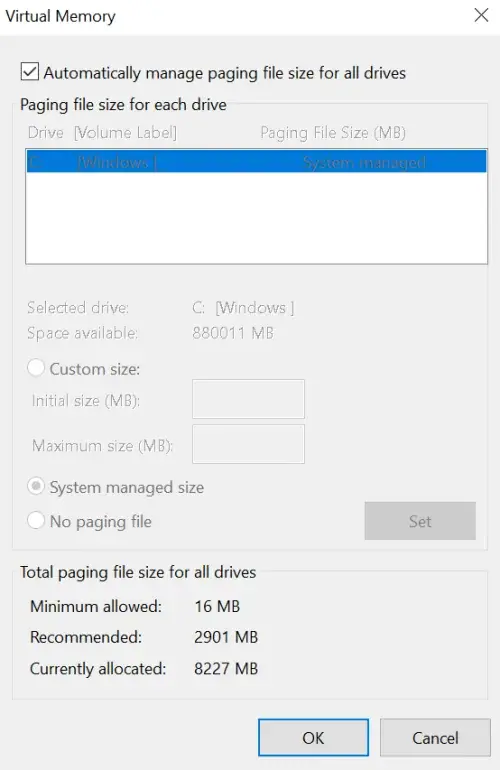
Use this baseline check to confirm Windows is managing the paging file automatically.
Repair startup failures involving Easy Anti-Cheat
Use this branch only when Easy Anti-Cheat appears and the game closes before reaching the title screen. It is less relevant if you can already enter the campaign and crash only during gameplay.
- Restart Steam and Windows.
- Make sure Steam is online.
- Verify the game files through Steam.
- Browse the local game installation and run the included Easy Anti-Cheat setup or repair option if it is available.
- Temporarily close overlays, virtual-controller software, and hardware-monitoring tools.
- Launch through Steam again with an empty Launch Options field.
Do not disable antivirus protection broadly as a routine fix. If security software has quarantined a verified game component, review that specific detection and restore or allow only the legitimate file through the product’s normal interface.
Avoid high-risk fixes until the basics are exhausted
The community reports contains many speculative combinations: long Unreal Engine launch strings, forced rendering modes, arbitrary compatibility settings, custom page-file values, GPU underclocks, RAM frequency changes, and BIOS adjustments. Some people reported temporary improvement; others later said the crash returned or that the same change did nothing.
Avoid these as first-line fixes:
- Do not paste a long launch command without understanding and recording every option.
- Do not change BIOS memory settings solely because one player suspected RAM instability.
- Do not underclock a GPU by a copied amount and treat it as a confirmed Ace Combat 8 requirement.
- Do not delete Easy Anti-Cheat or saved-game folders before making a backup.
- Do not force Windows compatibility modes unless a verified support instruction requires them.
- Do not repeatedly hard-reset the PC to push through a reproducible freeze.
If your PC is already unstable in other demanding applications, diagnose that broader system problem separately. If only Ace Combat 8 fails at one repeatable point, preserve that evidence for the game’s support team.
Prepare a useful crash report
The developer has requested detailed crash descriptions, including the error code, how the crash happens, and PC specifications. A precise report is more useful than a list of every workaround attempted.
Include:
- The exact error text or code, including whether it says Error 01.
- Whether the game closes, freezes, loses display output, or locks the entire PC.
- The last visible screen, mission, cinematic, menu, or input before the failure.
- Whether the crash happens every time or only occasionally.
- Windows version, CPU, GPU, installed graphics-driver version, and RAM amount.
- Whether the game is installed on an SSD and how much space remains.
- Whether Windows virtual memory is enabled and system-managed.
- The troubleshooting steps already tested and the result of each one.
- Any Windows Event Viewer entry recorded at the same time as a display or system freeze.
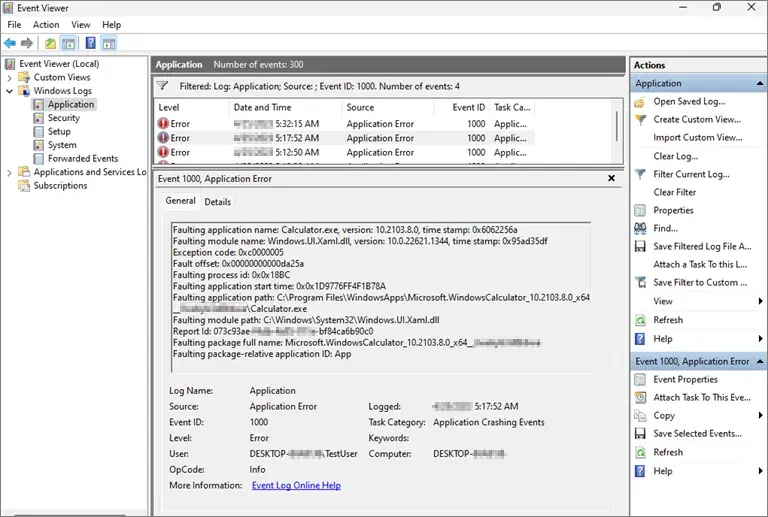
Capture the application error details alongside the crash stage and PC specifications.
Know when to stop troubleshooting
Stop repeating the same mission if it consistently hard-freezes the entire PC, especially after the recommended driver, storage, virtual-memory, file-verification, and configuration checks have failed. Repeated forced shutdowns are not a reasonable workaround.
Restore experimental settings, remove unverified launch commands, keep your crash report, and watch for a game or graphics-driver update. The development team is investigating Steam crash reports, so some systems may ultimately require a game-side or driver-side correction. These steps can improve stability in some environments, but none guarantees that every Ace Combat 8 PC crash is locally fixable.